Serial data bus I2C
See https://learn.adafruit.com/matrix-7-segment-led-backpack-with-the-raspberry-pi/overview
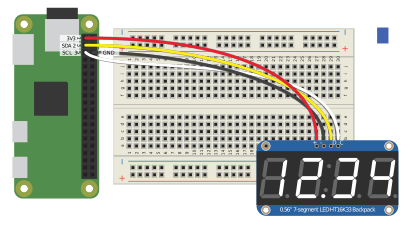
51-7_segment_display_counter.py
#!/usr/bin/env python3

# Import required modules from the (built-in) standard library.
import time

# Import the SevenSegment module from Adafruit's LED backpack library.
# Since it is not part of the standard library, it might need to be
# installed first [^1].
from Adafruit_LED_Backpack import SevenSegment

# Create an instance of the SevenSegment class. The class handles the
# communication with the display that is connected to the I2C bus.
display = SevenSegment.SevenSegment()

# Initialize the display.
display.begin()

# Create a variable for counting.
counter = 0

try:
    while True:
        # Clear the display buffer.
        display.clear()

        # Write the content to the display buffer.
        display.print_float(counter, decimal_digits = 0)
        display.set_colon(False)

        # Write the display buffer to the connected display.
        display.write_display()

        # Add 1 to the counter variable.
        counter += 1

        # Reset the counter, if the value is too high to be displayed.
        if counter == 10_000:
            counter = 0

        # Wait for 0.1 seconds.
        time.sleep(.1)

except KeyboardInterrupt:
    pass

# Turn all LEDs off.
display.clear()
display.write_display()

print('\nBye, bye.')


"""
Enable I2C interface with

    sudo raspi-config

and check connection using

    sudo i2cdetect -y 1

[^1]
Install library from

    https://github.com/adafruit/Adafruit_Python_LED_Backpack

e.g using the pip package-management system (requires the Raspberry Pi
to be connected to the internet)

    sudo pip3 install Adafruit-LED-Backpack
"""
52-7_segment_display_time
#!/usr/bin/env python3

# Import required modules from the (built-in) standard library.
import time

# Import the SevenSegment module from Adafruit's LED backpack library.
# Since it is not part of the standard library, it might need to be
# installed first [^1].
from Adafruit_LED_Backpack import SevenSegment

# Create an instance of the SevenSegment class. The class handles the
# communication with the display that is connected to the I2C bus.
display = SevenSegment.SevenSegment()

# Initialize the display.
display.begin()

try:
    while True:
        # Get the localized time as named tuple [^2].
        now = time.localtime()
        text = '{3:02}{4:02}'.format(*time.localtime())

        # Clear the display buffer.
        display.clear()

        # Write the content to the display buffer.
        display.print_number_str(text)
        display.set_colon((1 + now.tm_sec) % 2)

        # Write the display buffer to the connected display.
        display.write_display()

        # Wait for 1 second.
        time.sleep(1)

except KeyboardInterrupt:
    pass

# Turn all LEDs off.
display.clear()
display.write_display()

print('\nBye, bye.')


"""
Enable I2C interface with

    sudo raspi-config

and check connection using

    sudo i2cdetect -y 1

[^1]
Install library from

    https://github.com/adafruit/Adafruit_Python_LED_Backpack

e.g using the pip package-management system (requires the Raspberry Pi
to be connected to the internet)

    sudo pip3 install Adafruit-LED-Backpack

[^2]: The Python Standard Library - Time access and conversions
      https://docs.python.org/3.8/library/time.html#time.struct_time

      Index | Attribute | Values
      ======+===========+=======
          0 | tm_year   | (for example, 1993)
          1 | tm_mon    | range [1, 12]
          2 | tm_mday   | range [1, 31]
          3 | tm_hour   | range [0, 23]
          4 | tm_min    | range [0, 59]
          5 | tm_sec    | range [0, 61]; see (2) in strftime() description
          6 | tm_wday   | range [0, 6], Monday is 0
          7 | tm_yday   | range [1, 366]
          8 | tm_isdst  | 0, 1 or -1; see below
        N/A | tm_zone   | abbreviation of timezone name
        N/A | tm_gmtoff | offset east of UTC in seconds
"""