Serial data bus SPI
Download all scripts: 6-serial_data_bus_spi.zip
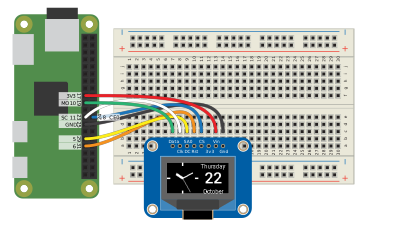
61-128x64_oled_hello_world.py
#!/usr/bin/env python3

# Import modules from related third party libraries.
from PIL import Image, ImageDraw, ImageFont  # Used to create content for the display [^1].
import Adafruit_GPIO.SPI as SPI  # [^2]
import Adafruit_SSD1306

# Setup the SPI connection.
SPI_PORT = 0  # Port number (there can be more than only 1 port)
SPI_DEVICE = 0  # Device number on that port (there can be more devices connected to 1 port)

# Setup the extra GPIO pins required to control the display.
RST = 6  # Use GPIO 6 to reset the display.
DC = 5  # Use GPIO 5 to control the data/command (DC) pin of the display.


try:
    # Create the SPI connection.
    spi_connection = SPI.SpiDev(SPI_PORT, SPI_DEVICE, max_speed_hz=8000000)

    # Create the display using the GPIO pins and SPI connection.
    display = Adafruit_SSD1306.SSD1306_128_64(rst=RST, dc=DC, spi=spi_connection)

    # Initialize the display.
    display.begin()

    # Get the display's width and height in pixels.
    width = display.width
    height = display.height

    # Clear the content of the display buffer.
    display.clear()

    # Write the display buffer to to physical display.
    display.display()

    # Use the (quite tiny) default font.
    default_font = ImageFont.load_default()

    # Create an empty 1-bit (= only black or white pixels) image.
    image = Image.new('1', (width, height))

    # Create a drawing object to add content to the image.
    draw = ImageDraw.Draw(image)

    # Add text to the image using the drawing object.
    draw.text((45, 20), 'Hello\nworld!', font=default_font, fill=1)

    # Copy the image to the display buffer.
    display.image(image)

    # Write the display buffer to to physical display.
    display.display()

    while True:
        pass

except KeyboardInterrupt:
    pass

# Clear the content of the display buffer.
display.clear()

# Write the display buffer to to physical display.
display.display()

print('\nBye, bye.')

"""
[^1]: SSD1306 OLED Displays with Raspberry Pi and BeagleBone Black
      https://learn.adafruit.com/ssd1306-oled-displays-with-raspberry-pi-and-beaglebone-black?view=all

[^2]: Pillow (PIL Fork)
      https://pillow.readthedocs.io/en/latest/
"""
62-128x64_oled_time_and_date.py
#!/usr/bin/env python3

# Import modules from the (built-in) standard library.
import time  # Used to pause the script for a little while.
# Import modules from Python Imaging Library (PIL) [^2] to create the content to display
from PIL import Image, ImageDraw, ImageFont

# Import Adafruit libraries to connect the display [^1] over SPI
import Adafruit_GPIO.SPI as SPI
import Adafruit_SSD1306


# Setup the SPI connection
SPI_PORT = 0  # Port number (there can be more than only 1 port)
SPI_DEVICE = 0  # Device number on that port (there can be more devices connected to 1 port)

# Setup the extra pins required to control the display.
RST = 6  # Use GPIO 6 to reset the display.
DC = 5  # Use GPIO 5 to control the Data/command (DC) pin of the


try:
    # Create the SPI connection.
    spi_connection = SPI.SpiDev(SPI_PORT, SPI_DEVICE, max_speed_hz=8000000)

    # Setup the 128x64 pixel OLED display and the SPI connection.
    display = Adafruit_SSD1306.SSD1306_128_64(rst=RST, dc=DC, spi=spi_connection)

    # Connect to the display
    display.begin()

    # Get the display's width and height (in pixels)
    width = display.width
    height = display.height

    # Clear the content of the display
    display.clear()

    # Display the current content of the display
    display.display()

    # Create an empty 1-bit (= only black or white pixels) image for use as off-screen framebuffer
    image = Image.new('1', (width, height))

    # Load custom fonts
    roboto_bold_32 = ImageFont.truetype('fonts/Roboto-Bold.ttf', 32)
    roboto_medium_24 = ImageFont.truetype('fonts/Roboto-Medium.ttf', 24)

    # Create a drawing object to add content to the off-screen framebuffer
    draw = ImageDraw.Draw(image)

    while True:

        # Clear the off-screen framebuffer by drawing a black filled box
        draw.rectangle((0, 0, width, height), outline = 0, fill = 0)

        # Add text to the off-screen framebuffer
        text = '{3:02}:{4:02}:{5:02}'.format(*time.localtime())  # Write time in first line
        draw.text((0,  0), text, font = roboto_bold_32, fill = 1)

        text = '{2:02}.{1:02}.{0:04}'.format(*time.localtime())  # Write date in second line
        draw.text((0, 40), text, font = roboto_medium_24, fill = 1)

        # Copy the off-screen framebuffer to the display
        display.image(image)

        # Display the current content of the display
        display.display()

        # Wait 0.1 seconds.
        time.sleep(0.1)

except KeyboardInterrupt:
    pass

# Clear the content of the display
display.clear()

# Display the current content of the display
display.display()

print('\nBye, bye.')

"""
[^1]: SSD1306 OLED Displays with Raspberry Pi and BeagleBone Black
      https://learn.adafruit.com/ssd1306-oled-displays-with-raspberry-pi-and-beaglebone-black?view=all

[^2]: Pillow (PIL Fork)
      https://pillow.readthedocs.io/en/latest/
"""
63-128x64_oled_analogue_clock.py
#!/usr/bin/env python3

# Import modules from the (built-in) standard library.
import math  # Used for trignometric calculations (sine, cosine and the number pi).
import time  # Used to pause the script for a little while.

# Import modules from related third party libraries.
from PIL import Image, ImageDraw, ImageFont  # Used to create content for the display [^1].
import Adafruit_GPIO.SPI as SPI  # [^2]
import Adafruit_SSD1306

# Setup the SPI connection.
SPI_PORT = 0  # Port number (there can be more than only 1 port)
SPI_DEVICE = 0  # Device number on that port (there can be more devices connected to 1 port)

# Setup the extra GPIO pins required to control the display.
RST = 6  # Use GPIO 6 to reset the display.
DC = 5  # Use GPIO 5 to control the Data/command (DC) pin of the display.

try:
    # Create the SPI connection.
    spi_connection = SPI.SpiDev(SPI_PORT, SPI_DEVICE, max_speed_hz=8000000)

    # Create the display using the GPIO pins and SPI connection.
    display = Adafruit_SSD1306.SSD1306_128_64(rst=RST, dc=DC, spi=spi_connection)

    # Initialize to the display.
    display.begin()

    # Get the display's width and height in pixels.
    width = display.width
    height = display.height

    # Clear the content of the display buffer.
    display.clear()

    # Write the display buffer to to physical display.
    display.display()

    # Use some custom fonts.
    roboto_regular_12 = ImageFont.truetype('fonts/Roboto-Regular.ttf', 12)
    roboto_medium_32 = ImageFont.truetype('fonts/Roboto-Medium.ttf', 32)

    # Create an empty 1-bit (= only black or white pixels) image.
    image = Image.new('1', (width, height))

    # Create a drawing object to add content to the image.
    draw = ImageDraw.Draw(image)

    # Define a function for drawing an analogue clock consisting of 3 hands
    # and a 12 markers around the perimeter as clock face using the drawing object.
    def draw_analogue_clock(hours, minutes, seconds, diameter = height, position = (0, 0)):
        radius = diameter / 2
        x, y = position
        center_x, center_y = (x + radius, y + radius)

        # Define a function to draw radial lines.
        def xy(value, max_value, length):
            angle = value / max_value * 2 * math.pi
            if length > 0:  # Draw a line from the center.
                xy = ((
                    round(center_x),
                    round(center_y)), (
                    round(center_x + math.sin(angle) * length),
                    round(center_y - math.cos(angle) * length)))
            else:  # Draw a line from the perimeter.
                xy = ((
                    round(center_x + math.sin(angle) * (radius + length)),
                    round(center_y - math.cos(angle) * (radius + length))), (
                    round(center_x + math.sin(angle) * radius),
                    round(center_y - math.cos(angle) * radius)))
            return xy

        # Draw the markers.
        marker_count = 12
        marker_length = 4
        for marker_id in range(marker_count):
            marker = 60 * marker_id / marker_count
            width = ((marker_id % 3) == 0) * 2 + 1  # Every 3rd marker is 3 pixels wide.
            draw.line(xy(marker, 60, -radius * 0.20), fill = 1, width = width)

        # Draw the hands.
        minutes += seconds / 60
        hours += minutes / 60
        draw.line(xy(seconds, 60, radius), fill = 1, width = 1)
        draw.line(xy(minutes, 60, radius * 0.75), fill = 1, width = 3)
        draw.line(xy(hours, 12, radius * 0.5), fill = 1, width = 5)

    # Draw aligned text by calculating the size of text and aligning the position to a given coordinate
    def draw_aligned_text(xy, text, font, align = ('left', 'top')):
        align_h, align_v = align
        x, y = xy
        if align_h != 'left' or align_n != 'top':
            width, height = draw.textsize(text, font = font)
        if align_h == 'center':
            x -= width / 2
        elif align_h == 'right':
            x -= width
        if align_v == 'center':
            y -= height / 2
        elif align_v == 'bottom':
            y -= height

        draw.text((x, y), text, font = font, fill = 1)

    while True:

        # Clear the offscreen image buffer by drawing a black filled box
        draw.rectangle((0, 0, width, height), outline = 0 , fill = 0)

        # Get the localized time as named tuple [^3]
        now = time.localtime()

        # Add the analog clock graphics to the off-screen framebuffer
        draw_analogue_clock(now.tm_hour, now.tm_min, now.tm_sec)

        # Add text to the off-screen framebuffer
        text = ['Monday', 'Tuesday', 'Wednesday', 'Thursday', 'Friday', 'Saturday', 'Sunday'][now.tm_wday]  # tm_wday: range [0, 6], Monday is 0
        draw_aligned_text((96,  0), text, roboto_regular_12, ('center', 'top'))

        text = '{}'.format(now.tm_mday)  # tm_mday: range [1, 31]
        draw_aligned_text((96, 28), text, roboto_medium_32, ('center', 'center'))

        text = ['January', 'February', 'March', 'April', 'May', 'June', 'July', 'August', 'September', 'October', 'November', 'December'][now.tm_mon - 1]  # tm_mon: range [1, 12]
        draw_aligned_text((96, 64), text, roboto_regular_12, ('center', 'bottom'))

        # Copy the offscreen image buffer to the display
        display.image(image)

        # Display the current content
        display.display()

        # Wait 1/10th of a second
        time.sleep(0.1)

except KeyboardInterrupt:
    pass

# Clear the content of the display
display.clear()

# Display the current content of the display
display.display()

print('\nBye, bye.')

"""
[^1]: Pillow (PIL Fork)
      https://pillow.readthedocs.io/en/latest/

[^2]: SSD1306 OLED Displays with Raspberry Pi and BeagleBone Black
      https://learn.adafruit.com/ssd1306-oled-displays-with-raspberry-pi-and-beaglebone-black?view=all

[^3]: The Python Standard Library - Time access and conversions
      https://docs.python.org/3.7/library/time.html#time.struct_time

      Index | Attribute | Values
      ======+===========+=======
          0 | tm_year   | (for example, 1993)
          1 | tm_mon    | range [1, 12]
          2 | tm_mday   | range [1, 31]
          3 | tm_hour   | range [0, 23]
          4 | tm_min    | range [0, 59]
          5 | tm_sec    | range [0, 61]; see (2) in strftime() description
          6 | tm_wday   | range [0, 6], Monday is 0
          7 | tm_yday   | range [1, 366]
          8 | tm_isdst  | 0, 1 or -1; see below
        N/A | tm_zone   | abbreviation of timezone name
        N/A | tm_gmtoff | offset east of UTC in seconds
"""